User Voices
(Loading...)
Our blog on SharePoint add-ons and solutions development
« It's all Give-and-Take: introducing our free Lite editions | Main | An 'Upcoming Birthdays' Web Part in 10 minutes »
Monday
Jan112010

How to do PeopleZen CSS Customizations

If you aren't a newcomer to Cascading Style Sheets (CSS), a core web technology (and chances are, as a SharePoint site designer, administrator or power user, you're not), then tweaking the visual appearance of the PeopleZen User Profiles Web Part for SharePoint is pretty straightforward.

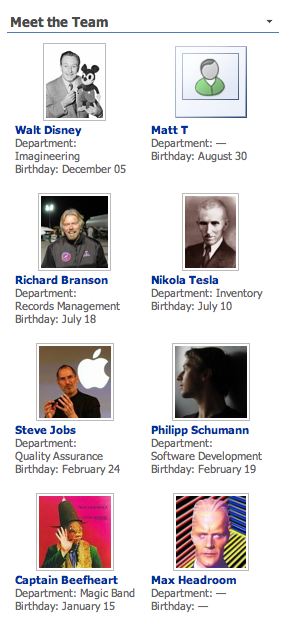
Even so, knowing where to start is always tricky. In this article, we give you an often-requested PeopleZen visual layout customization: a "business cards"-like design, and it's ready-to-add to your Web Part pages, no custom coding required.

By default, the Tiles view shows fairly large user profile pictures, user names and your desired properties all underneath. In contrast, this design customization:

  • places the user profile picture left to the textual artifacts,
  • reduces its size to about 50%,
  • aligns the user name to the left (instead of centered),
  • and adds very light borders to every "business card".

Often the easiest way to CSS-customize is to start from an existing customization, so try out the Business Cards CSS design:

  • it's a Content Editor Web Part which you can import into your Web Part page.
  • in its Content Editor tool pane, click Source Editor to see the CSS customizations (as illustrated in the screen shot on the left) or to further change them.
  • Download it here!

How does it work? Well, generally speaking, you can tweak any aspect of the PeopleZen Web Part's visual appearance by overriding its default CSS rules. For quick prototyping, you can just add a SharePoint Content Editor Web Part to the page, edit its source code directly, add a <style> HTML tag and include your custom rules there. For larger deployments and improved reusability, you may later on decide to place your CSS customizations as a style sheet file in a central location and automatically include it via your Site Master Page Settings or your custom theme.

We have documented the CSS rules that you can use; however, using an extension such as the IE 8 Developer Tools, Firebug or the Safari Web Inspector (depending on your web browser of choice) will still greatly help you in your efforts.

Lastly, we're here to help — if you run into any issues at all, let us know in the PeopleZen Feedback Forum as usual!

Reader Comments (1)

A user asked:

Is it possible to change the size from the photo in list view? We would like to size the photo one step bigger. On the screen it’s OK. But printed on paper the photos are very small.

Here's how you'd do it. Download the CSS-customizing Content Editor Web Part mentioned in the above article. Click Modify Web Part and then open its Source Editor. Inside the <style type="text/css"> tag, remove everything until the </style>. Then add the following clause in between those two tags:

.rox-userprofile-picture img { height: 128px !important; }

In Tiles view, the pictures will now be bigger. Pick your own preferred size. The default height is 72px in Tiles view.

What about List view? The same, but prepend to the above CSS line this: table.rox-userprofiles

In CSS, you can also define a bigger image size ONLY-for-printing. To have the bigger image size only in print view, place the above line inside such a block: @media print { } — and that's it! You can test this by selecting File / Print Preview in your browser.

February 2, 2010 at 15:33 | Registered CommenterROXORITY

PostPost a New Comment

Enter your information below to add a new comment.

My response is on my own website »
Author Email (optional):
Author URL (optional):
Post:
 
Some HTML allowed: <a href="" title=""> <abbr title=""> <acronym title=""> <b> <blockquote cite=""> <code> <em> <i> <strike> <strong>