


Using the SharePoint User Profiles List View Web Part
 Print Article
 The PeopleZen User Profiles Web Part offers you an incredibly easy way to list richly formatted links to user profiles inside your SharePoint environment, include relevant people data you choose, filter based on date properties or any others, and display user profile pictures too.
After successfully completed solution installation and feature activation, simply place the Web Part onto any SharePoint Page in the usual way and, depending on the user profiles already set up in your server farm, you will see something like the following:
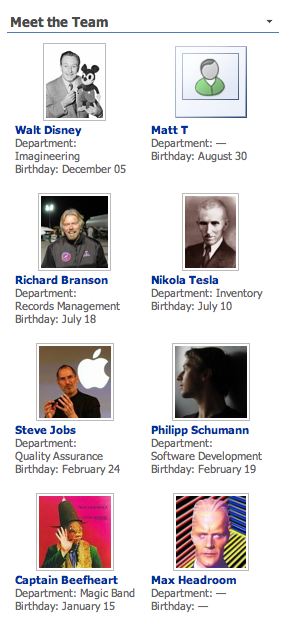
To customize the PeopleZen User Profiles Web Part, simply select Edit Web Part from the Web Part menu. In the current release, you can customize for any given individual Web Part the following settings outlined below. (PeopleZen also exposes additional configuration settings on the server farm or Site Collection level.)
Display Style
PeopleZen currently supports two view modes.
- The default view mode, pictured above, is called Tiles. It arranges user profiles next to each other, and optionally into multiple rows each containing a given maximum number (2 by default) of user profiles.
- The second view mode, pictured below, is called List View. It resembles the look and feel of the out-of-the-box SharePoint Document Library and List View tables:
To find out more:
- See the Display Style section
- Learn about further appearance and design customizations
- Also see the Miscellaneous section as well as the configuration settings available via Site Settings / PeopleZen / Configuration Settings.
User Profile Properties
The PeopleZen User Profiles Web Part always displays both the user profile picture and the name of the user. You can specify additional profile properties to be displayed per user. To find out more, see:
- About SharePoint User Profile Properties
- Displaying User Profile Properties in PeopleZen
- How user names and profile pictures are displayed (or hidden)
Paging, Sorting, Grouping
Simply specify the maximum number of user profiles to show at once, or specify 0 to always show all user profiles in the Web Part. Users can click Next and Previous links inside the Web Part to "page through" all user profiles. To find out more, see the Paging section.
PeopleZen lets you pre-define a sort property and order, as well as a grouping property and direction, and optionally lets end users change these interactively on-the-fly. To find out more, see the Sorting and Grouping sections.
Filtering, Tabbing and Search
You can limit the user profiles to be displayed based on any user profile properties, for example to create Web Parts such as Newly Hired Employees or Upcoming Colleague Birthdays. To find out more, see:
- Global user name filtering
- Simple built-in filtering options and setting up quick-filter tabbing
- Adding search and advanced filtering via connections
- An "Upcoming Birthdays" Web Part in 10 minutes (tutorial posted to our blog)
- Filtering PeopleZen by SharePoint Website User Group Memberships (forum thread on our website)



